

Deploying Branch as Code
To this point we have completed the following steps:
- Setup Environment: We have set up the environment for Branch as Code.
- Set Environment Variables: We have set the environment variables required for connecting to Dashboard and executing the automation.
- Build Data Model: We will be utilizing already provided data model from the sample repository.
Understanding the deployment process
Section titled “Understanding the deployment process”The first thing to remember is that this capability operates using Terraform. We structure the deployment using Terraform modules, which act as reusable building blocks. These modules read the data model—your inputs, variables, and configuration parameters—and translate them into Terraform-managed resources. Once executed, Terraform compares the desired configuration against the current state of the infrastructure. By running terraform plan, the tool determines what changes are required (create, update, or delete). Then, with terraform apply, Terraform performs these changes in the correct order, ensuring that all dependencies are respected and the infrastructure matches the declared state. This allows us to deploy consistent, repeatable, and predictable configurations to Dashboard or any other supported platform.
Step 1: Verify environment variables
Section titled “Step 1: Verify environment variables”Before proceeding with the deployment, it is essential to verify that the environment variables are set correctly. You can do this by running the following command in the terminal:
We previously created and entered data in .env file.
source .envVerify:
echo $org_nameStep 2: Merge Templates
Section titled “Step 2: Merge Templates”To perform the merge we will use module in workspaces folder. While the merge itself is performed by the terraform module, it is important to note that at this point of time there is NO any configuration being pushed. At this time, ONLY the merged file is being created.
To perform the merge, navigate to workspaces folder and initiate the merge.
cd workspaces/As the first step, we need to initialize Terraform. Initialization prepares the working directory by downloading all required provider plugins, modules, and dependencies referenced in the configuration files. This ensures that Terraform has everything it needs to parse the data model and interact with the Meraki API. To initialize the project, run:
terraform initTerraform will then:
- Download the Meraki provider and any other providers defined in the configuration
- Install required modules
- Set up the local backend for storing state (unless remote backend is configured)
- Verify that the configuration is syntactically correct
- Once initialization completes successfully, Terraform is ready to render and apply the configuration.
Expected output:
(branch-as-code) dcloud@lin-wkst1:~/network-as-code/branch-as-code/workspaces$ terraform initInitializing the backend...Initializing modules...Downloading git::https://github.com/netascode/terraform-meraki-nac-meraki.git for model...- model in .terraform/modules/model/modules/modelInitializing provider plugins...- terraform.io/builtin/terraform is built in to Terraform- Finding hashicorp/local versions matching ">= 2.5.2"...- Finding netascode/utils versions matching ">= 0.2.6"...- Installing hashicorp/local v2.5.3...- Installed hashicorp/local v2.5.3 (signed by HashiCorp)- Installing netascode/utils v1.0.2...- Installed netascode/utils v1.0.2 (self-signed, key ID 48630DA58CAFD6C0)Partner and community providers are signed by their developers.If you'd like to know more about provider signing, you can read about it here:https://developer.hashicorp.com/terraform/cli/plugins/signingTerraform has created a lock file .terraform.lock.hcl to record the providerselections it made above. Include this file in your version control repositoryso that Terraform can guarantee to make the same selections by default whenyou run "terraform init" in the future.
Terraform has been successfully initialized!
You may now begin working with Terraform. Try running "terraform plan" to seeany changes that are required for your infrastructure. All Terraform commandsshould now work.
If you ever set or change modules or backend configuration for Terraform,rerun this command to reinitialize your working directory. If you forget, othercommands will detect it and remind you to do so if necessary.
Further we perform apply so the templates are rendered:
terraform applyYou will be prompted to proceed - answer yes.
Expected output:
Terraform used the selected providers to generate the following execution plan. Resource actions are indicated with the following symbols:  + create
Terraform will perform the following actions:
  # module.model.local_sensitive_file.model[0] will be created  + resource "local_sensitive_file" "model" {      + content              = (sensitive value)      + content_base64sha256 = (known after apply)      + content_base64sha512 = (known after apply)      + content_md5          = (known after apply)      + content_sha1         = (known after apply)      + content_sha256       = (known after apply)      + content_sha512       = (known after apply)      + directory_permission = "0700"      + file_permission      = "0700"      + filename             = "merged_configuration.nac.yaml"      + id                   = (known after apply)    }
  # module.model.terraform_data.validation will be created  + resource "terraform_data" "validation" {      + id = (known after apply)    }
Plan: 2 to add, 0 to change, 0 to destroy.
Do you want to perform these actions?  Terraform will perform the actions described above.  Only 'yes' will be accepted to approve.
  Enter a value: yes
module.model.terraform_data.validation: Creating...module.model.terraform_data.validation: Creation complete after 0s [id=2e22d459-b34c-d2cd-a819-62cb9d2f6faa]module.model.local_sensitive_file.model[0]: Creating...module.model.local_sensitive_file.model[0]: Creation complete after 0s [id=1fcc7e3ddb72a4aceb1d7de20a838d3444153f6c]
Apply complete! Resources: 2 added, 0 changed, 0 destroyed.
At this moment in the workspaces folder the new file called merged_configuration.nac.yaml is created. This file represent the complete rendered configuration with all resolved variables.
This file should not be checked into any version control system, as it may contain confidential information. For the purpose of this lab, it is intentionally left unprotected to simplify the learning experience.
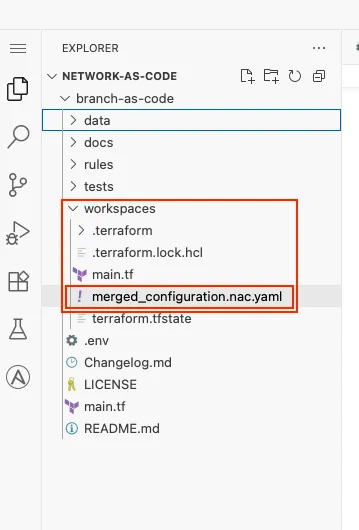
At this point syntax, semantics tests may be performed as well. These will be explained in the Integrated testing in Branch as Code section.
Step 3: Plan Deployment
Section titled “Step 3: Plan Deployment”Now when we rendered full configuration we can proceed to plan and actual deployment. We need to navigate back to the root of the directory and this time, initialize the modules needed for the deployment.
The configuration is provided in main.tf file in the root of the directory:
module "meraki" { source = "github.com/netascode/terraform-meraki-nac-meraki?ref=v0.5.0" yaml_directories = ["data"]}From here we can see that, for planning and deployment we will be using terraform-meraki-nac-meraki module. This module is opensource from netascode github organization.
To initiate the plan, first initiate the terraform:
terraform initExpected output:
(branch-as-code) dcloud@lin-wkst1:~/network-as-code/branch-as-code$ terraform initInitializing the backend...Initializing modules...Initializing provider plugins...- terraform.io/builtin/terraform is built in to Terraform- Finding ciscodevnet/meraki versions matching ">= 1.5.0"...- Finding netascode/utils versions matching ">= 0.2.6"...- Finding hashicorp/local versions matching ">= 2.5.2"...- Installing ciscodevnet/meraki v1.8.0...- Installed ciscodevnet/meraki v1.8.0 (signed by a HashiCorp partner, key ID 974C06066198C482)- Installing netascode/utils v1.0.2...- Installed netascode/utils v1.0.2 (self-signed, key ID 48630DA58CAFD6C0)- Installing hashicorp/local v2.5.3...- Installed hashicorp/local v2.5.3 (signed by HashiCorp)Partner and community providers are signed by their developers.If you'd like to know more about provider signing, you can read about it here:https://developer.hashicorp.com/terraform/cli/plugins/signingTerraform has created a lock file .terraform.lock.hcl to record the providerselections it made above. Include this file in your version control repositoryso that Terraform can guarantee to make the same selections by default whenyou run "terraform init" in the future.
Terraform has been successfully initialized!
You may now begin working with Terraform. Try running "terraform plan" to seeany changes that are required for your infrastructure. All Terraform commandsshould now work.
If you ever set or change modules or backend configuration for Terraform,rerun this command to reinitialize your working directory. If you forget, othercommands will detect it and remind you to do so if necessary.
Further the terraform plan is to be pefrormed. To do so execute:
terraform planTerraform plan analyzes your Terraform configuration files and compares them with the current state of your infrastructure. Based on this comparison, it creates an execution plan that tells you exactly what Terraform intends to do. In other words, it answers the question: “If I run terraform apply, what will happen?”
In our lab we expect output similar to:
Plan: 242 to add, 0 to change, 0 to destroy.Here, we see that plan is to add resources while making no changes or destroy (remove). You can evaluate displayed plan to make yourself familiar with the resources that about to be created, and understand how the configuration in YAML file is being now translated to the resources.
Generally, the plan lists all required actions, such as:
- Create — resources that do not exist yet
- Update / Modify — resources whose configuration changed
- Delete — resources that should be removed
- No changes — everything already matches the desired state
Terraform marks these changes with symbols:
- create ~ update
- delete
During the initial deployment, you should expect to see only create/add actions in the Terraform plan. However, during any subsequent runs, Terraform may also show updates or removals, depending on what has changed in the configuration or in the environment. Terraform determines these changes by relying on its state file. The state file is a local (or remote) record that keeps track of all resources Terraform has created and their current attributes. It acts as the source of truth for Terraform, allowing it to understand:
- What resources already exist
- How they were configured previously
- What needs to be modified to match the new desired state
- Whether any resources should be removed because they no longer appear in the configuration
Because of this, the state file is crucial for enabling Terraform’s incremental, predictable, and idempotent behavior. In production environments, the state file is usually stored remotely (e.g., in S3, Azure Storage, or Terraform Cloud) to ensure consistency, secure access, and team collaboration.
Step 4: Deployment
Section titled “Step 4: Deployment”At this stage we will perform actual deployment doing the terraform apply. This command instructs Terraform to execute the actions shown in the plan—creating, updating, or removing resources so that the infrastructure matches the desired state defined in your configuration files. During the apply phase, Terraform will:
- Interact with the Meraki API (using the provided key, hence it is important to have full write access to the Org)
- Create required resources
- Modify any configurations that changed
- Remove resources no longer defined
- Update the state file to reflect the new, actual state
If you run terraform apply without supplying a pre-generated plan, Terraform will automatically generate a new plan and ask for confirmation before proceeding.
For automated environments (e.g., CI/CD), the apply step is often executed with:
terraform apply -auto-approveIn this lab, you can simply execute:
terraform applyThat will re-generate the same plan (provided you made no configuration changes meanwhile), and prompt you for approval to perform actions. Enter yes.
terraform applyPlan: 242 to add, 0 to change, 0 to destroy.
Do you want to perform these actions? Terraform will perform the actions described above. Only 'yes' will be accepted to approve.
Enter a value: yesAfter successful execution, your infrastructure is fully aligned with the defined configuration. The deployment may take few minutes as we are configuring new Organization and multiple branches.
module.meraki.module.model.terraform_data.validation: Creating...module.meraki.module.model.terraform_data.validation: Creation complete after 0s [id=c94ea963-78eb-9e05-69e1-3467d20ec851]module.meraki.meraki_organization.organizations["US/Unified Branch Learning Org"]: Creating...module.meraki.meraki_organization.organizations["US/Unified Branch Learning Org"]: Creation complete after 2s [id=3859584880656515927]module.meraki.meraki_network.organizations_networks["US/Unified Branch Learning Org/Unified Branch 1"]: Creating...module.meraki.meraki_network.organizations_networks["US/Unified Branch Learning Org/Unified Branch 2"]: Creating...module.meraki.meraki_network.organizations_networks["US/Unified Branch Learning Org/Unified Branch 4"]: Creating...module.meraki.meraki_network.organizations_networks["US/Unified Branch Learning Org/Unified Branch 3"]: Creating...module.meraki.meraki_network.organizations_networks["US/Unified Branch Learning Org/Unified Branch 5"]: Creating......

Apply complete! Resources: 242 added, 0 changed, 0 destroyed.
Once the creation is complete, navigate to your Meraki Dashboard. Login with the credentials that have same level access as API key used.
You should see your organization and networks created:
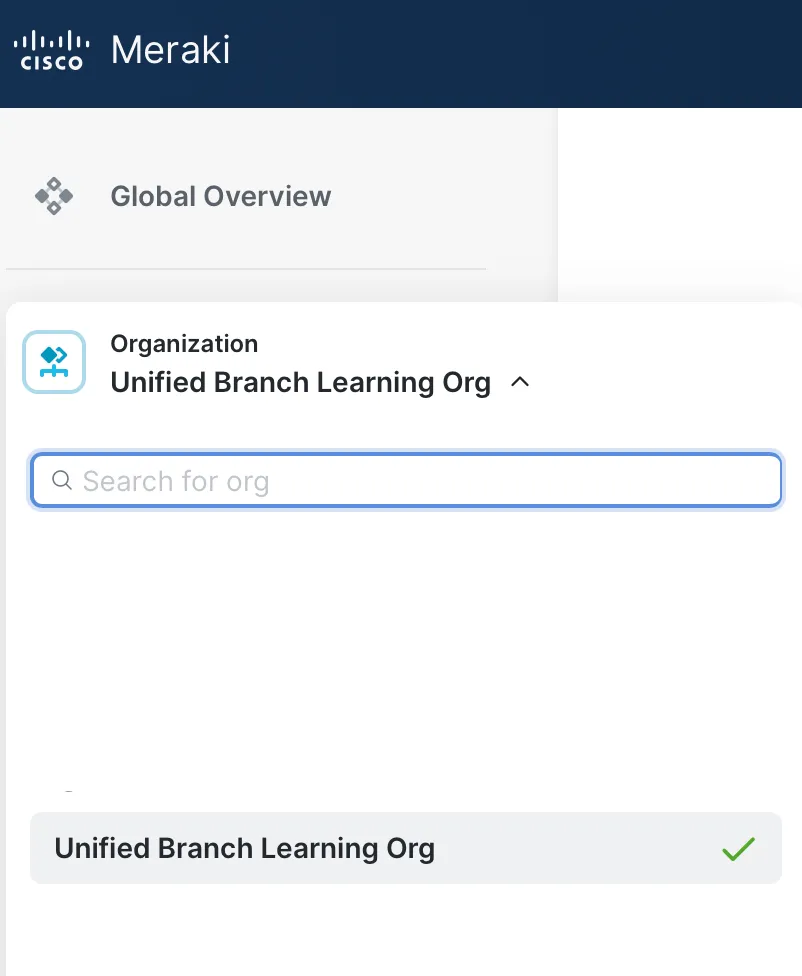
If you navigate to the organization and then Networks >> View all networks
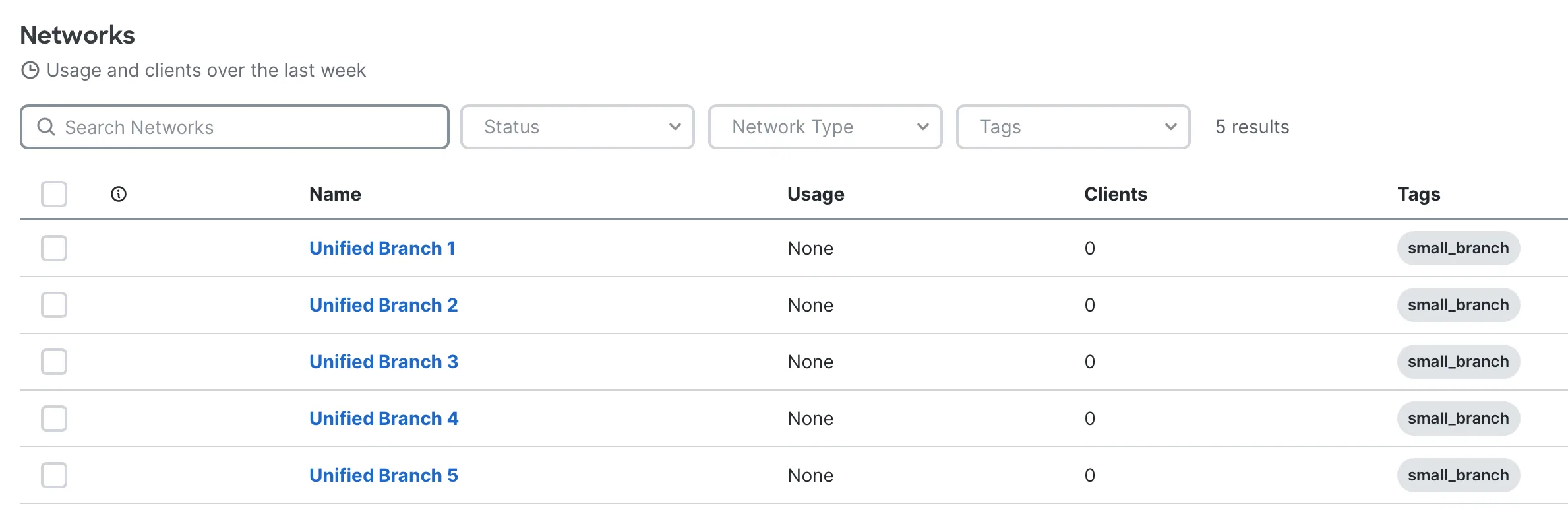
At this point automatic tests may be performed as well. More will be explained in the Integrated testing in Branch as Code section.