

Integrated testing in Branch as Code
In any discussion of Infrastructure as Code, you will find some form of testing. In any modern Development Operations (DevOps) run environment, testing is integrated at different development stages. First you have the unit tests, embedded into code that is being developed and then integration and system testing.
For Network as Code, we provide two aspects of testing. First to ensure that the structure and syntax of the data model is correct, and second post change validation to ensure that the configuration and operational state of the network is correct after a change has been applied.
Overview
Section titled “Overview”For Network as Code there are two distinct tools that we utilize to achieve our testing objectives:
| yaml-lint | nac-validate | nac-test |
|---|---|---|
This tool is used to validate the syntax and structure of YAML files. It checks for errors in YAML files and ensures that they are well-formed. In combination with other tools like pre-commit you could ensure that changes to the YAML are structured correctly (in YAML format) before even getting posted into the GIT repository. | This tool is used to validate the data model syntax and structure. It checks for errors in the data model and ensures that it is ready for deployment. This element performs specific validation that could pass YAML lint but could be an invalid configuration and not allowed by schema. | This tool is used to validate the configuration and operational state of the network after a change has been applied. It checks that the configuration is correct and that the operational state of the network matches the expected state. |
Note : nac-validate and nac-test were previously known as iac-validate and iac-test
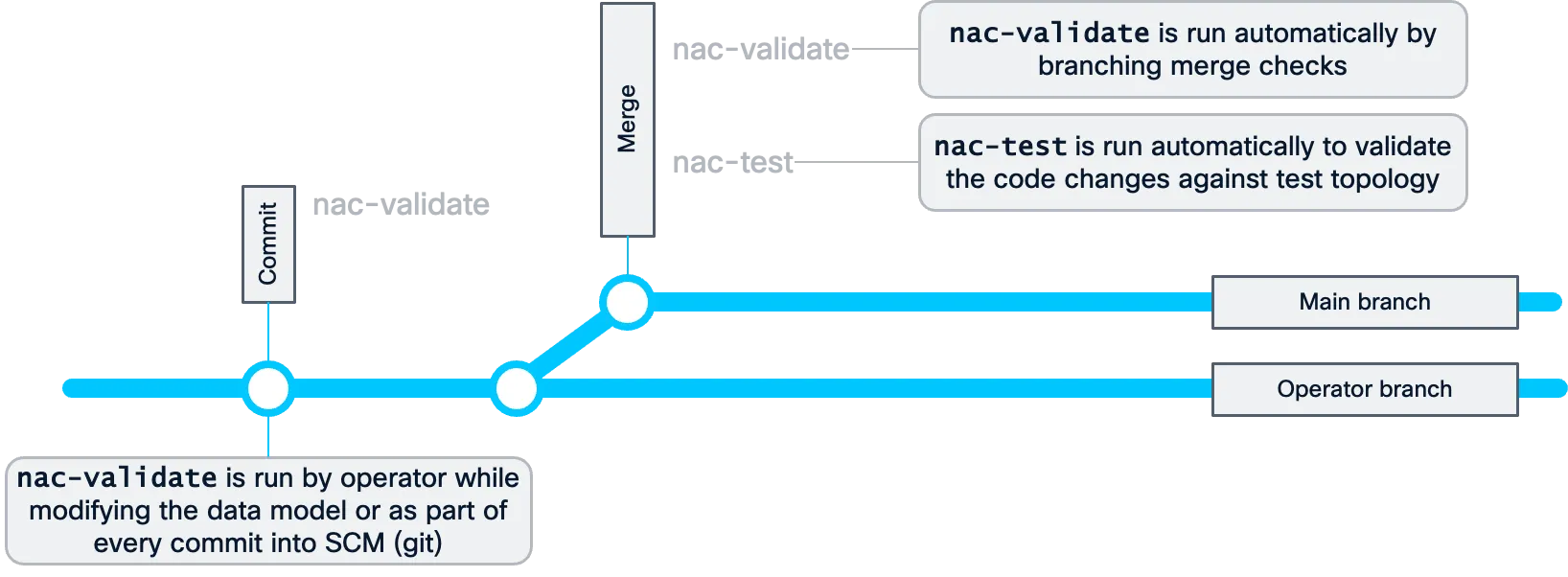
The combination of these two tools provides the network operator with the combination of tools that avoid common errors from hitting production changes. These tools can be both used inside an automation pipeline or as standalone tools. The following diagram described what it would look like from a software lifecycle perspective.
Operators can be creating changes in the data model locally and performing checks against the work they are doing. Once completed, then when they push these changes into a central repository, the automation pipeline will perform the same validation checks and tests before accepting the changes.
Let’s take a look at each of these tools in more detail.
nac-validate
Section titled “nac-validate”The nac-validate tooling focuses on pre-change validation. The best way to “correlate” this to a software development process is to think of it as a linter. It checks the syntax and structure of the data model. To accomplish this, it uses a YAML schema to corroborate that data model. When working with code linting is a common practice to ensure that the code is syntactically correct and follows best practices. For Network as Code this facility allows the operators to validate their work while they are making changes to the data model.
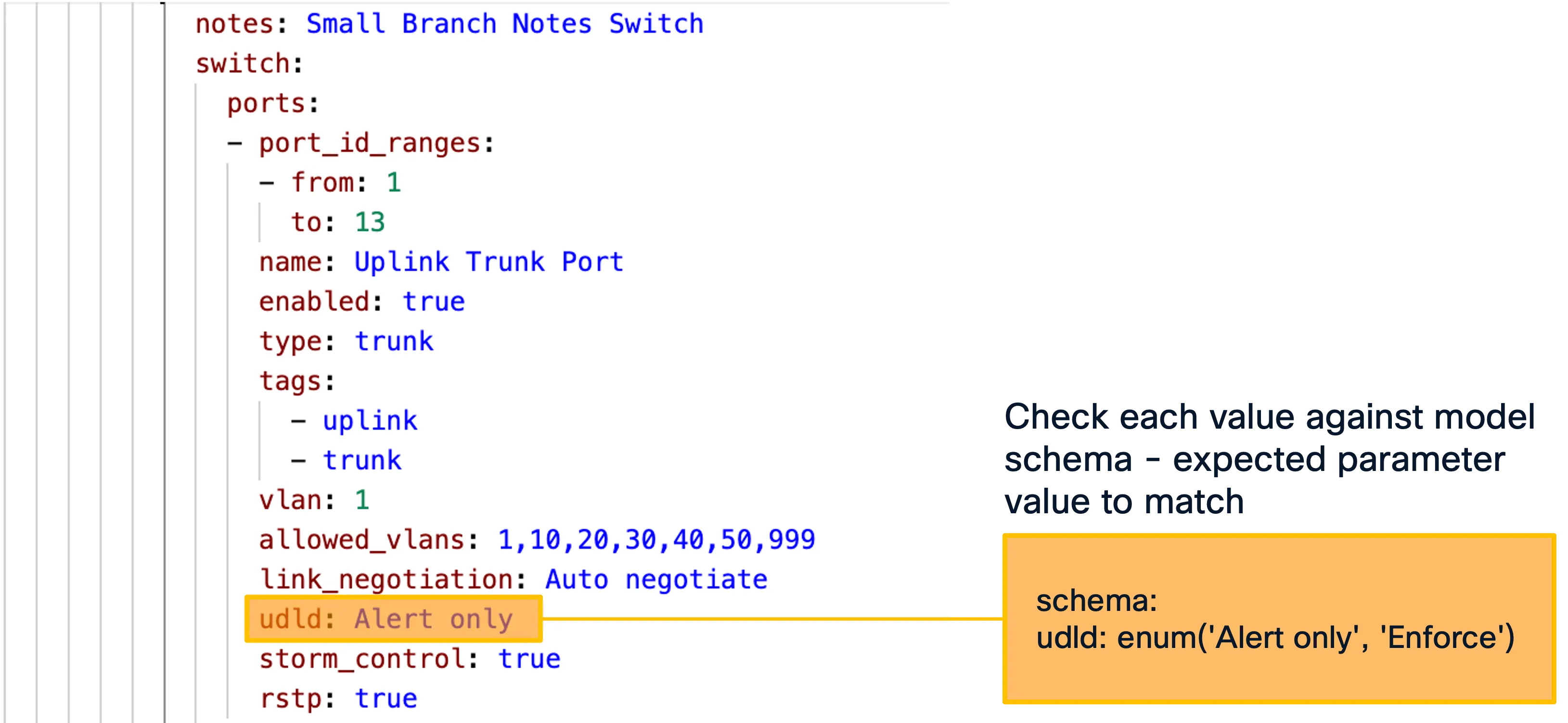
In addition to the semantic validation, nac-validate also can run rules to perform compliance checks.

Usage: nac-validate [OPTIONS] PATHS...
 A CLI tool to perform syntactic and semantic validation of YAML files.

╭─ Arguments ─────────────────────────────────────────────────────────────────────────────────────────────────────────────────────────────────────────────────────────╮│ *    paths      PATHS...  List of paths pointing to YAML files or directories. [default: None] [required]                                                           │╰─────────────────────────────────────────────────────────────────────────────────────────────────────────────────────────────────────────────────────────────────────╯╭─ Options ───────────────────────────────────────────────────────────────────────────────────────────────────────────────────────────────────────────────────────────╮│ --verbosity   -v      [DEBUG|INFO|WARNING|ERROR|CRITICAL]  Verbosity level. [env var: NAC_VALIDATE_VERBOSITY] [default: WARNING]                                    ││ --schema      -s      FILE                                 Path to schema file. [env var: NAC_VALIDATE_SCHEMA] [default: .schema.yaml]                              ││ --rules       -r      DIRECTORY                            Path to directory with semantic validation rules. [env var: NAC_VALIDATE_RULES] [default: .rules]        ││ --output      -o      FILE                                 Write merged content from YAML files to a new YAML file. [env var: NAC_VALIDATE_OUTPUT] [default: None]  ││ --non-strict                                               Accept unexpected elements in YAML files. [env var: NAC_VALIDATE_NON_STRICT]                             ││ --version                                                  Display version number.                                                                                  ││ --help                                                     Show this message and exit.                                                                              │╰─────────────────────────────────────────────────────────────────────────────────────────────────────────────────────────────────────────────────────────────────────╯
The Schema file
Section titled “The Schema file”To be able to do the semantic validation in nac-validate, there is a schema file that defines the structure of the data model. The complete schema file is available as part of Services as Code.
The schema file is built utilizing Yamale, a YAML schema validator. Yamale is a Python library that allows Network as Code to perform this validation. Our tool, nac-validate, uses this library to validate the data in the model after some pre-processing steps.
To help you understand the schema file, the example repository contains a minimal schema that is provided for demonstration purposes. This schema file is located in the schema directory of the example repository.
Note : Due to the limited scope of the example schema file, you will be able to perform syntax check of full configuration file. In normal operation, once the full schema file is available, you can do syntax check of any field in the configuration.
Step 1: Run nac-validate Syntax check
Section titled “Step 1: Run nac-validate Syntax check”In this step you will run the nac-validate tool locally to validate the data model. The simplified schema file is already included in the example repository.
First, create the simplified data model:
vi bac.nac.yamlCopy this very basic configuration:
meraki: domains: - name: US organizations: - name: SAMPLE networks: - name: SAMPLENow, run the nac-validate tool:
cd ~/network-as-code/branch-as-codenac-validate --schema schema.yaml bac.nac.yaml --verbosity DEBUGThis will give you output similar to:
(branch-as-code) dcloud@lin-wkst1:~/network-as-code/branch-as-code$ nac-validate --schema schema.yaml bac.nac.yaml --verbosity DEBUGINFO - Loading schemaINFO - Validate file: bac.nac.yamlThis indicates (“Loading schema”) that schema is loaded and that bac.nac.yaml file is verified. Now, navigate back to your file and configure network name to be “12345”.
meraki: domains: - name: US organizations: - name: SAMPLE networks: - name: 12345Repeeat the test:
cd ~/network-as-code/branch-as-codenac-validate --schema schema.yaml bac.nac.yaml | moreThis shall give you output similar to:
(branch-as-code) dcloud@lin-wkst1:~/network-as-code/branch-as-code$ nac-validate --schema schema.yaml bac.nac.yaml --verbosity DEBUGINFO - Loading schemaINFO - Validate file: bac.nac.yamlERROR - Syntax error 'bac.nac.yaml': meraki.domains.[name=US].organizations.[name=SAMPLE].networks.[name=12345].name: '12345' is not a str.Now, we can see that we got a Syntax error for the network name field as 12345 is integer and we expect string.
If you navigate to provided sample schama file in line 18 you will find that name: str(min=1, max=127) name must be string long up to 127 characters.
Now, modify the test cli to verify our full configuration file and run:
cd ~/network-as-code/branch-as-codenac-validate --schema schema.yaml workspaces/merged_configuration.nac.yaml | moreThis time, it is expected to see the syntax error:
(branch-as-code) dcloud@lin-wkst1:~/network-as-code/branch-as-code$ nac-validate --schema schema.yaml workspaces/merged_configuration.nac.yaml | moreERROR - Syntax error 'workspaces/merged_configuration.nac.yaml': meraki.domains.[administrator={'name': 'root'}].administrator: Unexpected elementERROR - Syntax error 'workspaces/merged_configuration.nac.yaml': meraki.domains.[administrator={'name': 'root'}].organizations.[managed=True].managed: Unexpected element...The full configuration file includes many elements that are not defined in the example schema. Running the validation command without additional options will therefore produce an error. This is expected because the sample schema is intentionally incomplete.
To validate the configuration against this limited schema, you must include the —non-strict option:
cd ~/network-as-code/branch-as-codenac-validate --schema schema.yaml workspaces/merged_configuration.nac.yaml --non-strictYou can work with your Cisco representative if you are interested to have access to full schema, as part of our Services as Code subscription.
Syntax checks act as the first safety gate, blocking invalid configuration from being deployed. This reduces deployment failures, protects production networks, and maintains the integrity of the end-to-end automation process.
!!! note ”💡 Note” To get the most out of Network as Code, it is strongly recommended to use a YAML-aware editor, such as VS Code with the Red Hat YAML extension.
The extension detects indentation, formatting, and structural errors as you type, preventing invalid configuration from reaching the validation pipeline. It also provides auto-completion, value hints, and on-hover documentation for NaC YAML files, helping ensure your configuration aligns with the expected data model.
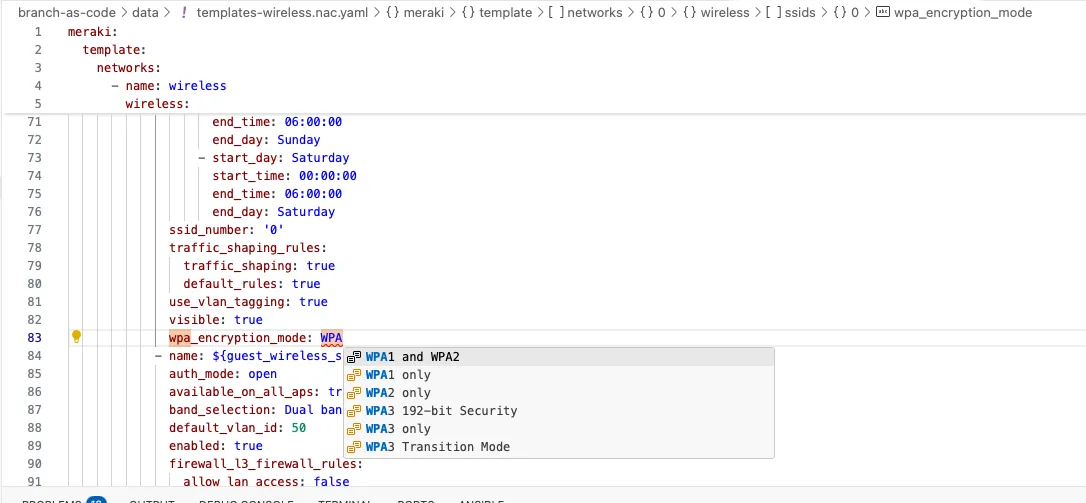
Using this plugin gives immediate feedback during development, flags errors early, and improves maintainability and readability when multiple engineers work on the same files.
By convention, YAML files used with NaC follow a naming pattern such as something.nac.yaml. The VS Code plugin recognizes this suffix and uses the Network as Code SchemaStore to validate the file against the correct schema.
Get the Red Hat YAML plugin for VS Code here
Step 2: Run nac-validate Semantic check
Section titled “Step 2: Run nac-validate Semantic check”Semantic validation ensures that the configuration is not only syntactically correct, but also logically valid, consistent, and compliant with network rules and policies. Semantic validation is done by providing a set of rules (implemented in Python) which are then validated against the YAML data. Every rule is implemented as a Python class and should be placed in a .py file located in the —rules path.
For example: Admin usernames must include “admin”, an SNMP community string isn’t empty, or that an IP address is in a valid subnet.
As part of the sample repository, we have provided one sample rule in rules folder. The rule is configured to not allow administrator name be “root” as an example.
To verify how this works, lets take a look first
nac-validate --schema schema.yaml workspaces/merged_configuration.nac.yaml --non-strict --verbosity DEBUG --rules rulesExpected output:
(branch-as-code) dcloud@lin-wkst1:~/network-as-code/branch-as-code$ nac-validate --schema schema.yaml workspaces/merged_configuration.nac.yaml --non-strict --verbosity DEBUG --rules rulesINFO - Loading schemaINFO - Loading rulesINFO - Validate file: workspaces/merged_configuration.nac.yamlINFO - Loading yaml files from [PosixPath('workspaces/merged_configuration.nac.yaml')]INFO - Verifying rule id 101(branch-as-code) dcloud@lin-wkstSo from the log we can see that rule 101 (located in rules folder) was evaluated and there was no any issues.
Navigate to open the workspaces/merged_configuration.nac.yaml and check the administrator configured name - we shall see that administrator name is configured as admin.
"meraki": "domains": - "administrator": "name": "admin"Now, modify the file so the name is root
"meraki": "domains": - "administrator": "name": "root"And re-run the test:
nac-validate --schema schema.yaml workspaces/merged_configuration.nac.yaml --non-strict --verbosity DEBUG --rules rulesNow, we expect to see the error reported. If we evaluate content of the rules/101_admin_name.py - it is small python class that is verifying that the name of the administrator must not be root.
(branch-as-code) dcloud@lin-wkst1:~/network-as-code/branch-as-code$ nac-validate --schema schema.yaml workspaces/merged_configuration.nac.yaml --non-strict --verbosity DEBUG --rules rulesINFO - Loading schemaINFO - Loading rulesINFO - Validate file: workspaces/merged_configuration.nac.yamlINFO - Loading yaml files from [PosixPath('workspaces/merged_configuration.nac.yaml')]INFO - Verifying rule id 101ERROR - Semantic error, rule 101: Admin name must not be 'root' (["Admin name must not be 'root' in domain 'US'"])Similarly, we can create other rules that match our requirements, compliance or configuration related. When subscribed to Services as Code, the team can help you create required rules.
At this point you can revert back the configuration change made root back to admin.
nac-test
Section titled “nac-test”In the same vein as nac-validate, the nac-test tool is used to perform post-change validation. This tool is used to validate that the configuration on Meraki Dashboard matches the configuration that is declared in the data model. As part of this example repository, you will find a set of tests against the Network and SSID List.
The primary focus of nac-test is to do a 1:1 verification that the intended configuration matches what is deployed. For this reason, to accomplish this task it is normally executed after the deployment of the configuration to Meraki Dashboard.
 Usage: nac-test [OPTIONS]
 A CLI tool to render and execute Robot Framework tests using Jinja templating.

╭─ Options ────────────────────────────────────────────────────────────────────────────────────────────────────────────────────╮│ *  --data         -d      PATH                                 Path to data YAML files. [env var: NAC_TEST_DATA]             ││                                                                [default: None]          [required]                           ││ *  --templates    -t      DIRECTORY                            Path to test templates. [env var: NAC_TEST_TEMPLATES]         ││                                                                [default: None]         [required]                            ││ *  --output       -o      DIRECTORY                            Path to output directory. [env var: NAC_TEST_OUTPUT]          ││                                                                [default: None]           [required]                          ││    --filters      -f      DIRECTORY                            Path to Jinja filters. [env var: NAC_TEST_FILTERS]            ││                                                                [default: None]                                               ││    --tests                DIRECTORY                            Path to Jinja tests. [env var: NAC_TEST_TESTS]                ││                                                                [default: None]                                               ││    --include      -i      TEXT                                 Selects the test cases by tag (include).                      ││                                                                [env var: NAC_TEST_INCLUDE]                                   ││    --exclude      -e      TEXT                                 Selects the test cases by tag (exclude).                      ││                                                                [env var: NAC_TEST_EXCLUDE]                                   ││    --render-only                                               Only render tests without executing them.                     ││                                                                [env var: NAC_TEST_RENDER_ONLY]                               ││    --dry-run                                                   Dry run flag. See robot dry run mode.                         ││                                                                [env var: NAC_TEST_DRY_RUN]                                   ││    --verbosity    -v      [DEBUG|INFO|WARNING|ERROR|CRITICAL]  Verbosity level.   [env var: NAC_VALIDATE_VERBOSITY]          ││                                                                [default: WARNING]                                            ││    --version                                                   Display version number.                                       ││    --help                                                      Show this message and exit.                                   │╰──────────────────────────────────────────────────────────────────────────────────────────────────────────────────────────────╯
Step 3: Run nac-test local
Section titled “Step 3: Run nac-test local”To enable the execution of the nac-test tool, a results directory where the test results will be stored needs to be configured. This directory is specified in the --output option of the command.
For the purpose of this learning lab, we have provided two test templates in the tests/templates folder. The tests are written using Robot Framework and leverage Jinja templating. When you run the tool, the full tests will be rendered using the data from the provided YAML files and templates. By subscribing to Services as Code, you gain access to the complete testing suite, where every feature comes with automatic tests available by default.
cd ~/network-as-code/branch-as-codenac-test -t tests/templates/ -d workspaces/merged_configuration.nac.yaml -o tests/resultsThis command will render the tests that are specified in the test/templates folder to match the environment that is described in the workspaces/merged_configuration.nac.yaml file and save the results in the tests/results folder.
Which will generate results that should be similar to the following output:
(branch-as-code) dcloud@lin-wkst1:~/network-as-code/branch-as-code$ nac-test -t tests/templates/ -d workspaces/merged_configuration.nac.yaml -o tests/resultsRobot Framework remote server at 127.0.0.1:47967 started.Storing .pabotsuitenames file2025-11-27 09:17:27.703026 [PID:90755] [1] [ID:0] EXECUTING Results.Config.Networks List2025-11-27 09:17:27.703431 [PID:90756] [0] [ID:1] EXECUTING Results.Config.Networks Wireless Ssid List2025-11-27 09:17:33.216775 [PID:90755] [1] [ID:0] PASSED Results.Config.Networks List in 5.5 seconds2025-11-27 09:17:42.728145 [PID:90756] [0] [ID:1] still running Results.Config.Networks Wireless Ssid List after 15.0 seconds2025-11-27 09:17:43.731715 [PID:90756] [0] [ID:1] PASSED Results.Config.Networks Wireless Ssid List in 16.0 seconds{'command': ['robot'], 'verbose': False, 'help': False, 'version': False, 'testlevelsplit': False, 'pabotlib': True, 'pabotlibhost': '127.0.0.1', 'pabotlibport': 0, 'processes': 4, 'processtimeout': None, 'artifacts': ['png'], 'artifactstimestamps': True, 'artifactsinsubfolders': False, 'shardindex': 0, 'shardcount': 1, 'chunk': False, 'no-rebot': False, 'argumentfiles': []}110 tests, 80 passed, 0 failed, 30 skipped.===================================================Output: /home/dcloud/network-as-code/branch-as-code/tests/results/output.xmlXUnit: /home/dcloud/network-as-code/branch-as-code/tests/results/xunit.xmlLog: /home/dcloud/network-as-code/branch-as-code/tests/results/log.htmlReport: /home/dcloud/network-as-code/branch-as-code/tests/results/report.htmlStopping PabotLib processRobot Framework remote server at 127.0.0.1:47967 stopped.PabotLib process stoppedTotal testing: 21.50 secondsElapsed time: 16.75 secondsNavigate to the /tests/results folder, where you will find the report.html file among the outputs.
We expect to see report similar to:
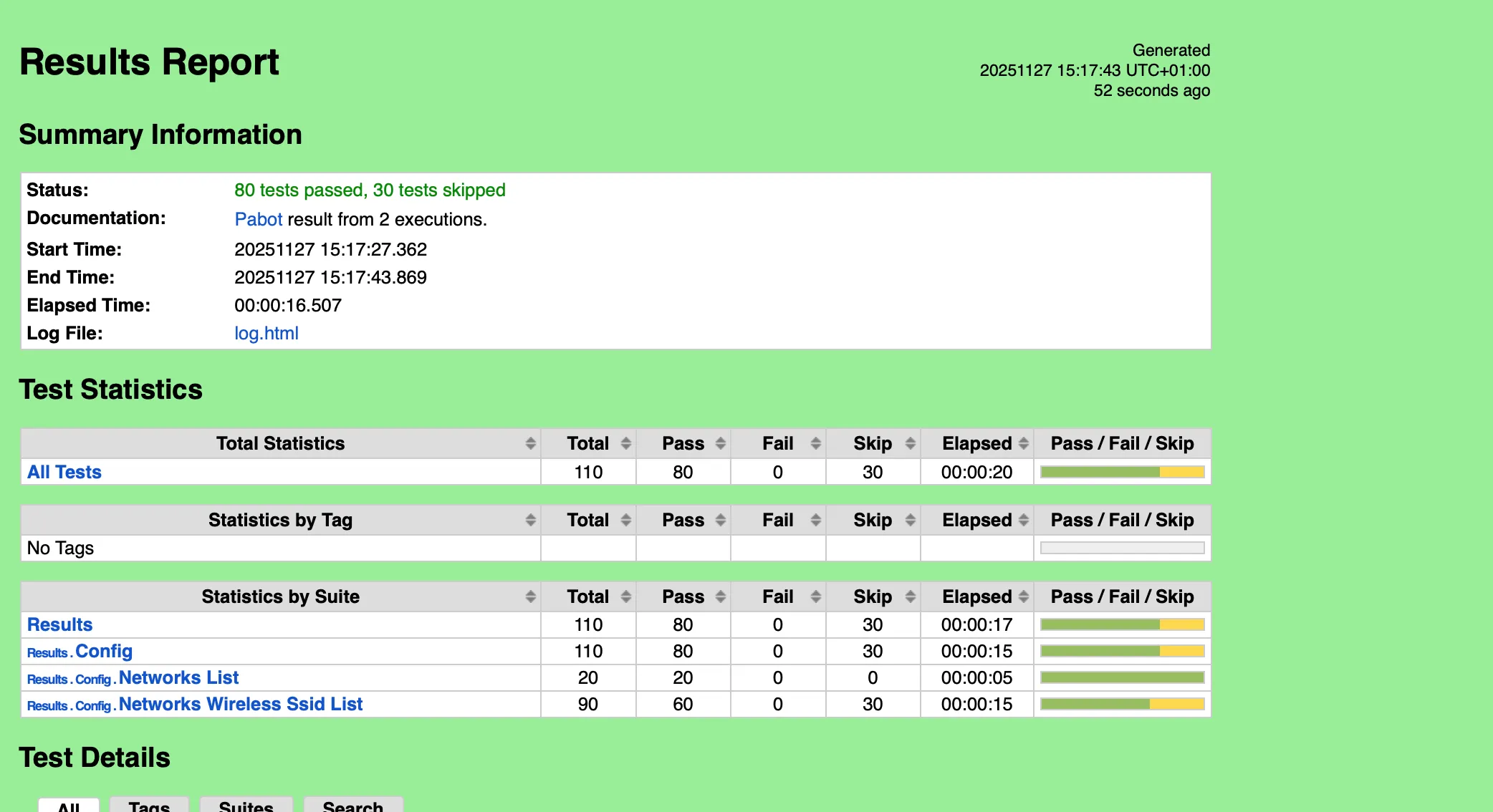
Let’s examine what we see here:
- For the five branches that were created, a total of 110 tests were generated. These tests are automatically rendered using the YAML file as input along with the Robot Framework Jinja templates provided as examples.
- We expect all tests to either pass or be skipped.
- Skipped tests correspond to features that exist in the test suite but were not configured in the YAML file. For example, the Splash Page test for the Data SSID is skipped because there is no such configuration in the Data SSID (though it is present in the Guest SSID).
- The total time to run tests for five branches—each with approximately 18 tests (90 tests across 5 branches)—was 20 seconds, demonstrating a significant time saving.