

Lab Environment Setup
For this lab we will be utilizing Cisco dCloud to provide a lab environment that is pre-configured with Catalyst SD-WAN and the necessary components to run the Network as Code (NaC) SD-WAN capability. You are required to schedule the lab in Cisco dCloud that is available at Cisco dCloud. The lab is named “Network as Code - SD-WAN” and is available in the dCloud catalog.
The lab topology looks like this:
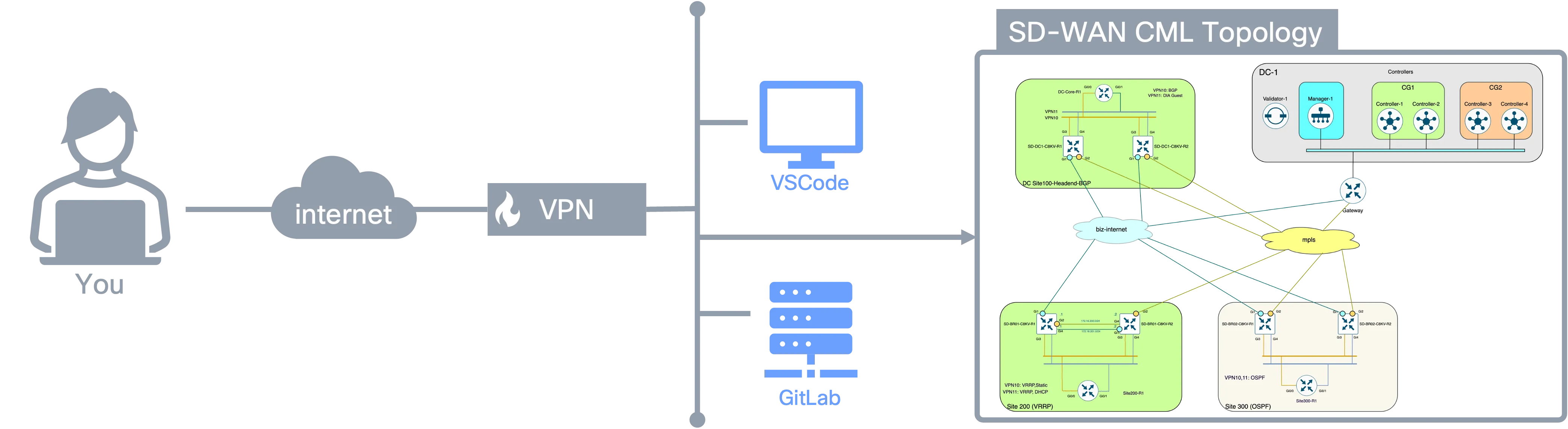
Once you have scheduled the lab, you will be accessing the lab environment components invidividually. Each are:
| Component | Description | URL | Credential |
|---|---|---|---|
| Catalyst SD-WAN Manager (formerly vManage) | The central management platform for the Catalyst SD-WAN fabric. | SD-WAN Manager | Username: sdwanPassword: C1sco12345 |
| Code Server | This is a web based version of Visual Studio Code that will be the central point for your development in this lab. It is pre-configured with the necessary tools and extensions to work with Network as Code. | Code Server | Password: C1sco12345 |
| GitLab | The GitLab instance is used to manage the code repositories for the Network as Code (NaC). This guide will touch in GitLab as a way to manage the code repositories for the Network as Code (NaC) in a way that would be used by customers for Day-2 Infrastructure as Code operations and pipelines. If you are only interested in learning Network as Code to perform a deployment, you could skip this section. | GitLab | Username: labuserPassword: C1sco12345 |
| CML Topology | The CML topology is used to simulate the SD-WAN controllers and devices. This allows you to easily test Network as Code in a lab. | CML Portal | Username: labuserPassword: C1sco12345 |
Connect to dCloud VPN
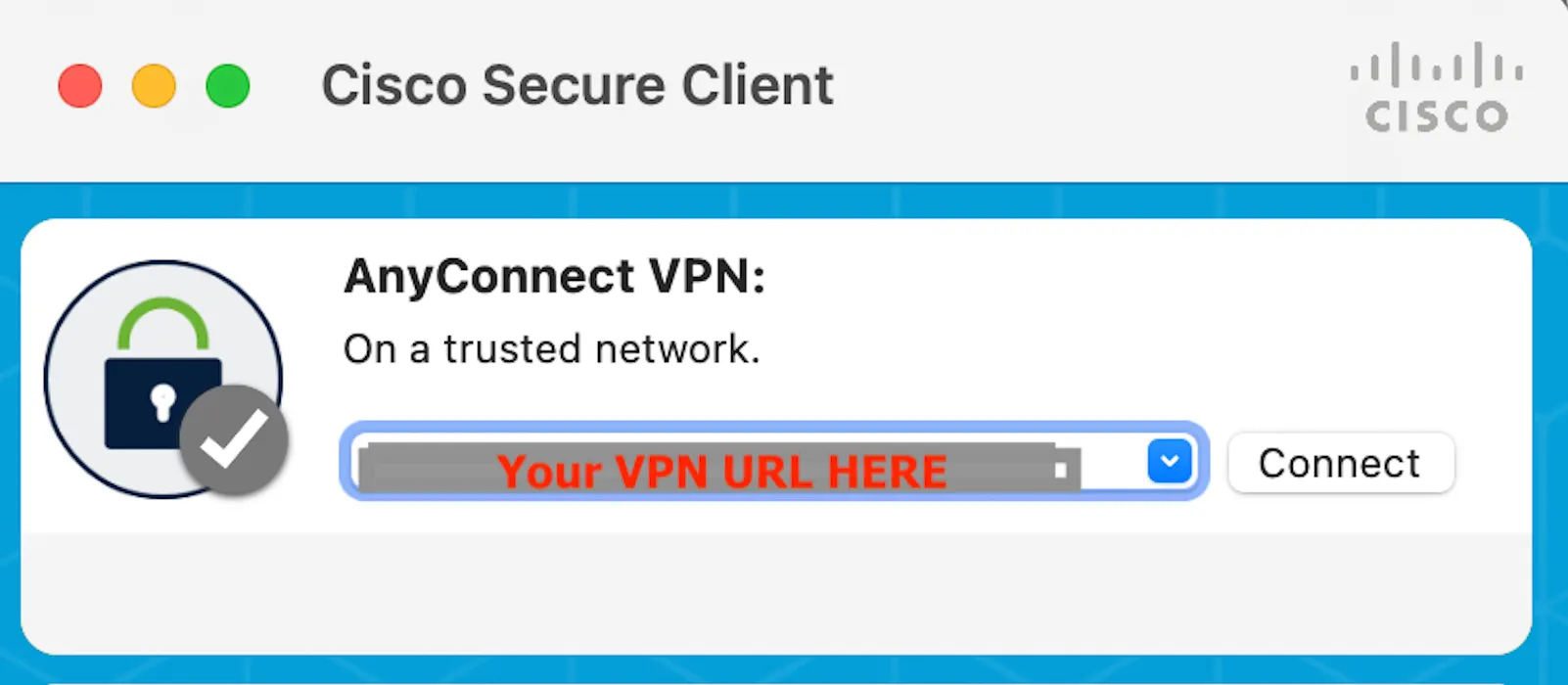
Section titled “Connect to dCloud VPN”You will connect to the dCloud VPN using the AnyConnect client. This will allow you to access the lab environment securely.
- Download and install the Cisco AnyConnect client from the Cisco dCloud website.
- Launch the AnyConnect client and enter the VPN URL provided in the lab instructions.
- Enter your Cisco dCloud credentials when prompted.
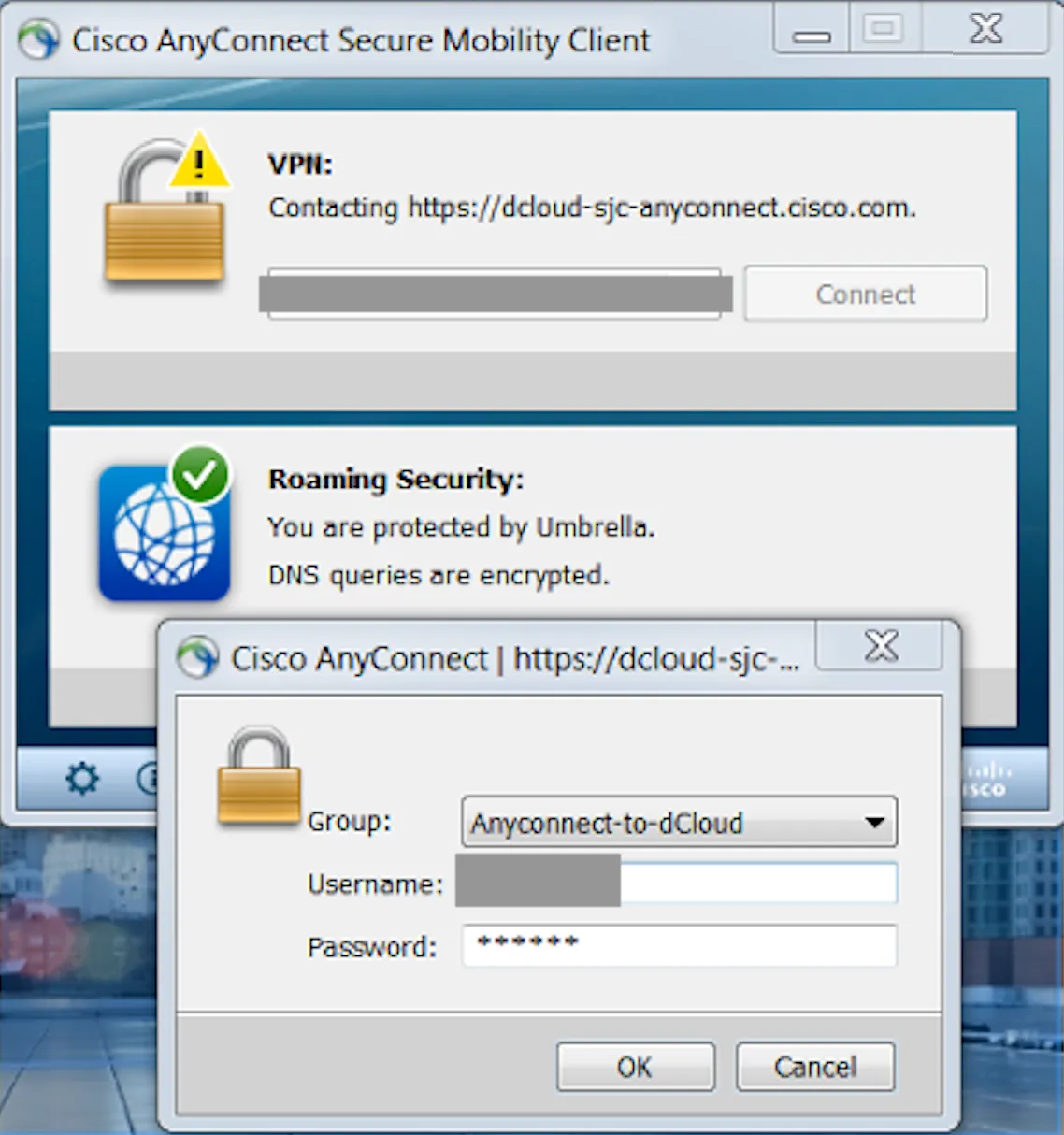
- Once connected, you should be able to access the lab environment securely.
Lab Environment
Section titled “Lab Environment”The primary interface for this lab is the Code Server instance. Here you will be able to modify code that is described in the lab guide and also use the Linux terminal to execute the automation tasks. You will use your web browser to access the Code Server instance, which will obviate the need for a remote desktop client.
Step 1: Connect to Code Server
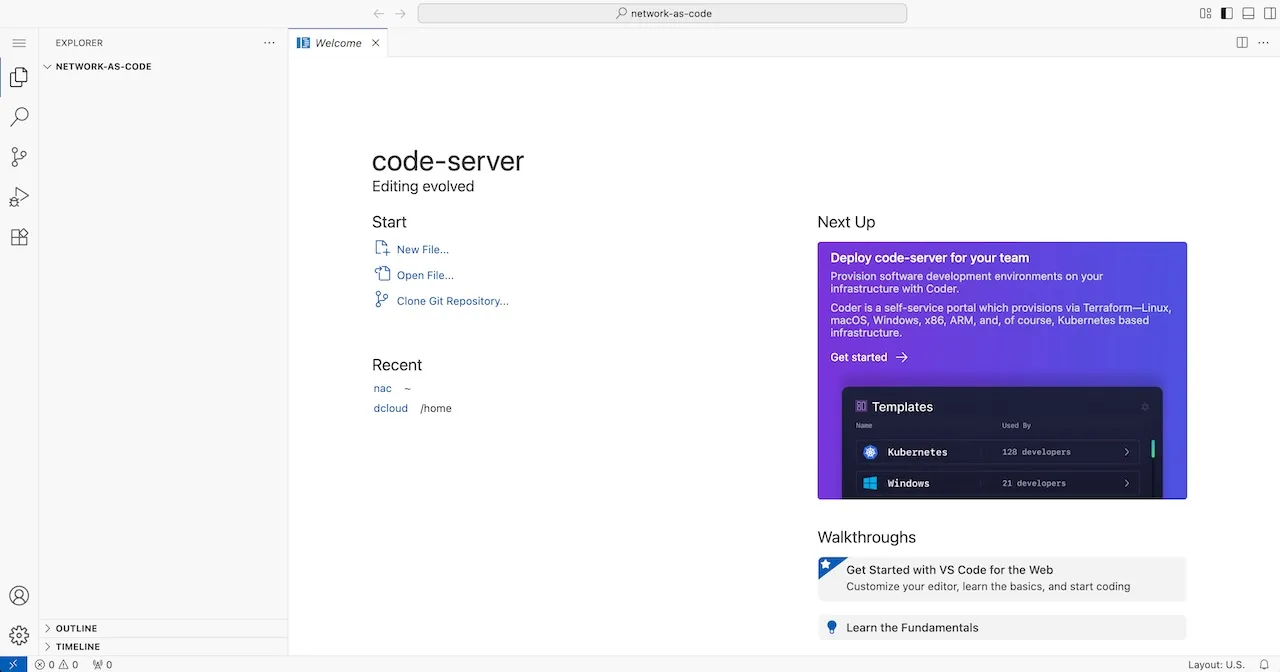
Section titled “Step 1: Connect to Code Server”The first step is to connect to the Code Server instance. The URL is: Code Server and the password is C1sco12345. Your browser will look similar to:
Step 2: Open the terminal
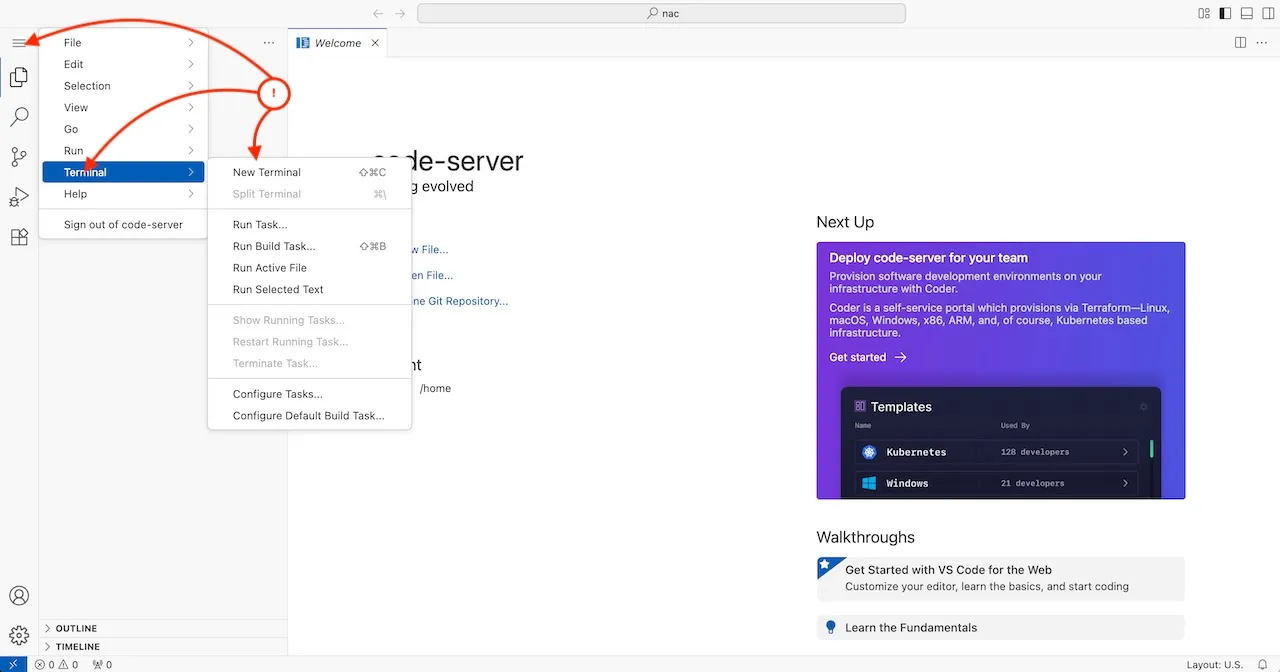
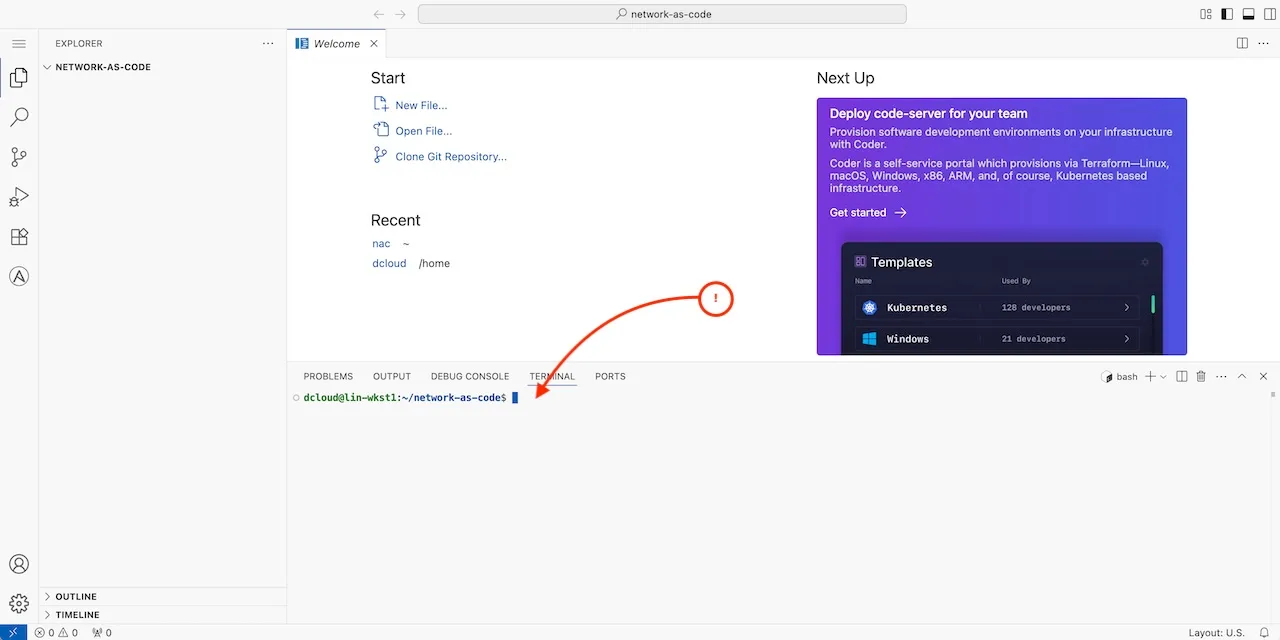
Section titled “Step 2: Open the terminal”To access the terminal, click on the menu icon on the top left and select “Terminal” > “New Terminal”. This will open a terminal window at the bottom of the Code Server interface.
The Network as Code (NaC) capabilities utilizes Terraform as its core automation engine. To effectively use Terraform with SD-WAN, you need to set up Terraform with required modules and providers for interacting with SD-WAN Manager. Running the capability requires a working environment that includes Terraform, Python, and the necessary dependencies. This document will guide you through setting up the environment to run the NaC SD-WAN capability with a focus on the included lab environment available in Cisco dCloud.
Installing Network as Code Dependencies
Section titled “Installing Network as Code Dependencies”The lab environment comes pre-configured with all necessary tools including Python 3.12+, Terraform, and other dependencies. These steps will happen in the Terminal window you opened earlier in the Code Server instance.
You can now proceed to install what is needed for Network as Code SD-WAN directly in the lab environment.